Boardroom AI · setup guide for Altegio clients · updated 5 November 2026 · Русский
Revenue Control: AI administrator and CRM for salons on Altegio
Revenue Control is an AI assistant and CRM by Boardroom AI (Dubai, UAE). It answers your salon's clients around
the clock on WhatsApp, Telegram and your website chat, takes services, prices, masters and free times from
Altegio, and books, moves and cancels visits. Every booking lands in the CRM together with the conversation.
Not a booking bot — an AI administrator and a CRM in one. Every enquiry becomes a deal, and the
assistant writes again to clients who went quiet and brings the bookings back.
Free times come from the Altegio calendar during the conversation. No double bookings.
The administrator sees every conversation and takes it over in one click.
80+ languages, in text and voice. The assistant answers in the client's language.
The voice AI calls back missed calls while the client is still thinking about you.
What the service does and does not do
It answers questions about services and prices, offers free times, and books, moves and cancels the client's
own appointments in Altegio. A new booking appears in the CRM as a meeting and a deal. The administrator can
take over any conversation at any moment.
The service does not change your price list, masters' schedules or online-booking settings;
it does not apply discounts, redeem bonuses or take payment for the visit — that stays in Altegio. Instagram
direct messages are not supported yet.
Have ready
An Altegio account with access to the branches you want to connect.
The WhatsApp number or Telegram bot your clients already write to.
Your price list and main salon or clinic rules (cancellation terms, what you do not do). You can add them later too.
A person who takes conversations when the assistant hands them to an administrator.
A second phone to test.
Step by step — 10–15 minutes
In the Altegio Marketplace open the Revenue Control card and press Connect.
Read the list of access rights and confirm. Rights are granted at connection; if you change them later,
disconnect the app and connect it again.
Sign in to Revenue Control or create an account by email: a one-time code arrives, no password needed.
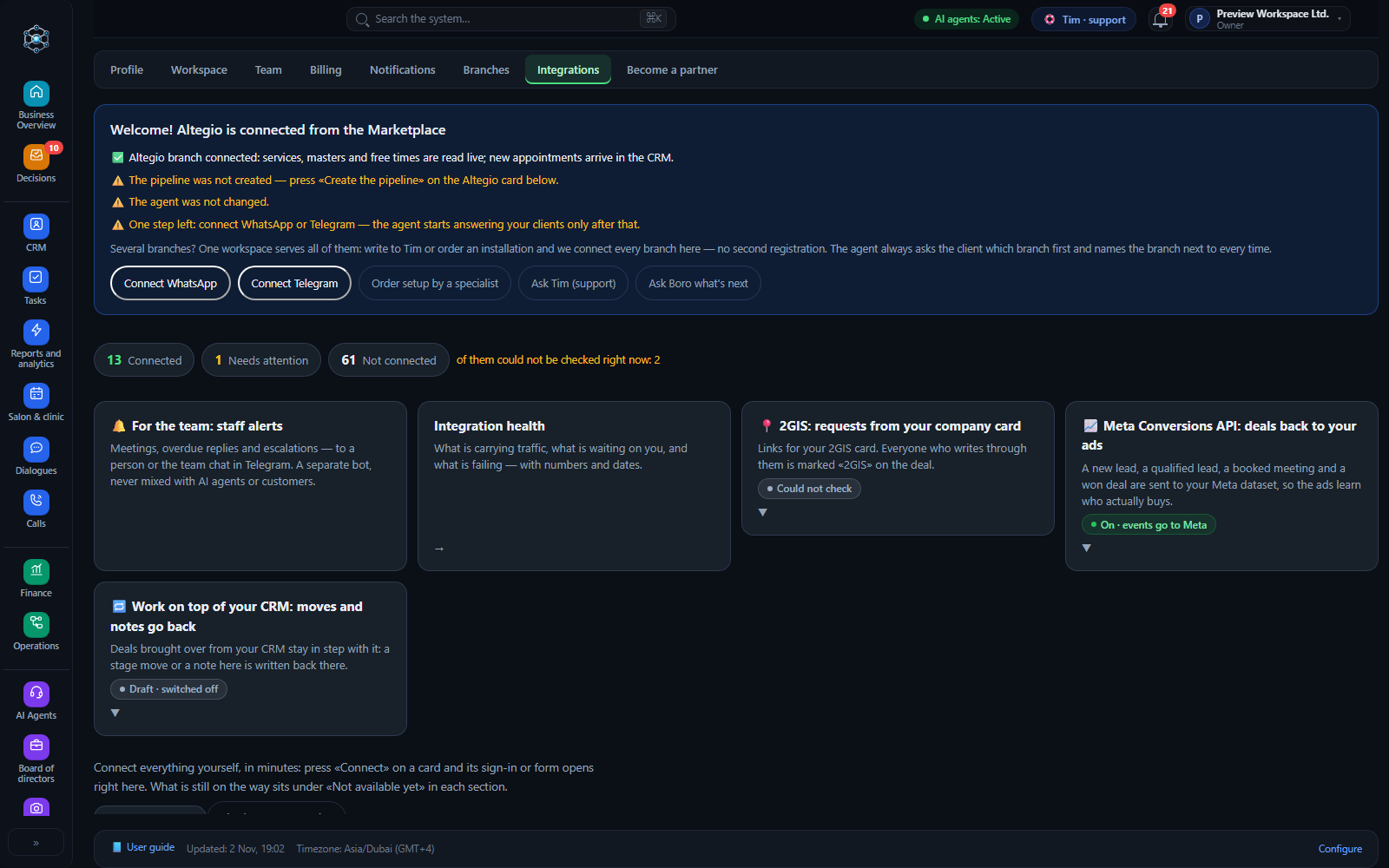
The cabinet opens on Integrations with the block Welcome! Altegio is connected from the Marketplace.
The branch you installed from is connected, a salon pipeline is created (new enquiry, consultation, booked,
came, no-show, cancelled), and if you had no instruction of your own, a salon assistant is prepared. The
block shows which step is left.
The welcome block: what is ready and what is left.
Connect a messenger with Connect WhatsApp or Connect Telegram in the same block
and follow the steps on screen. The assistant starts answering your clients only after this step.
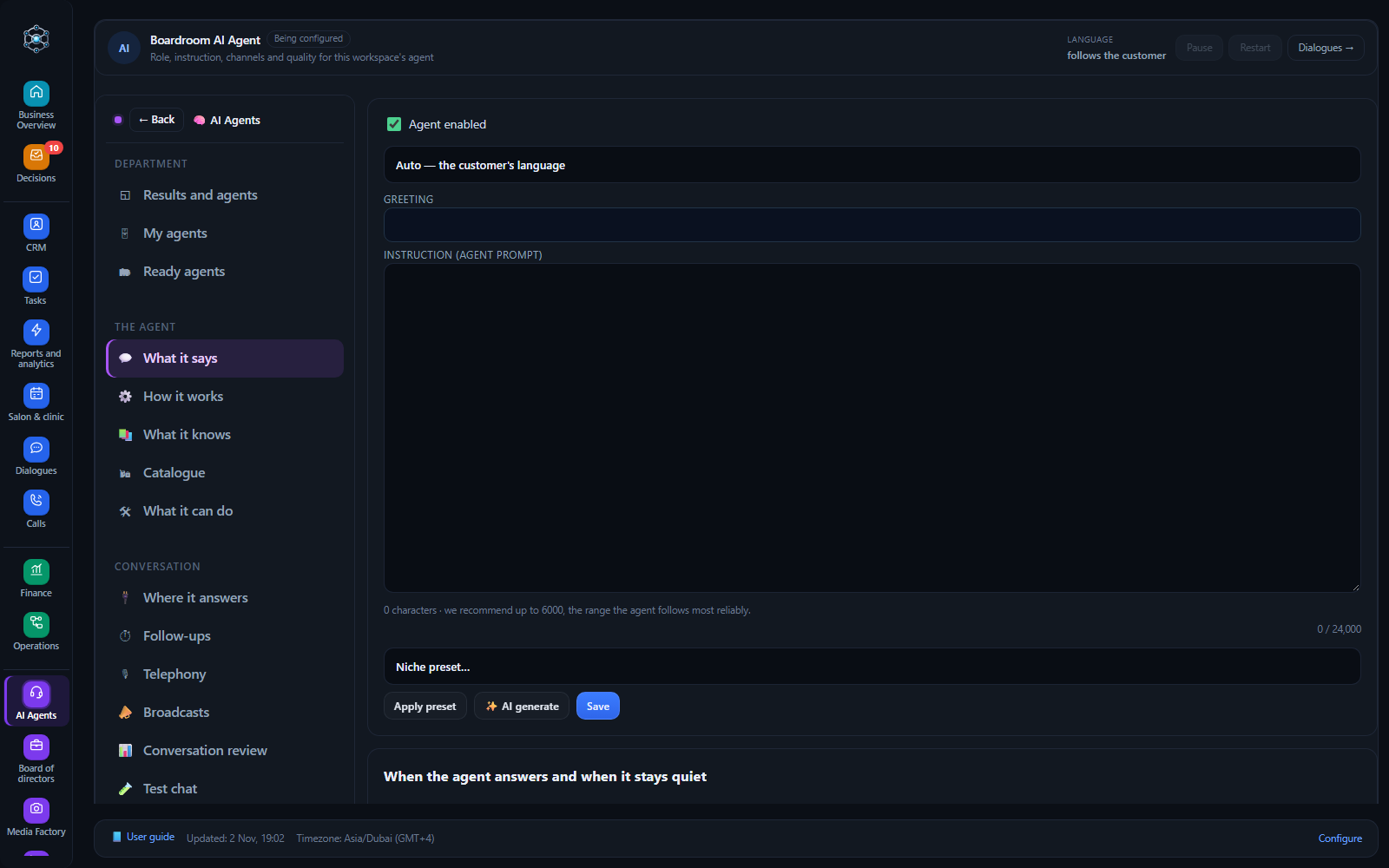
Open AI Agents → What it says: check the greeting, language and instruction,
and that Agent enabled is ticked.
The assistant's greeting, language and instruction.
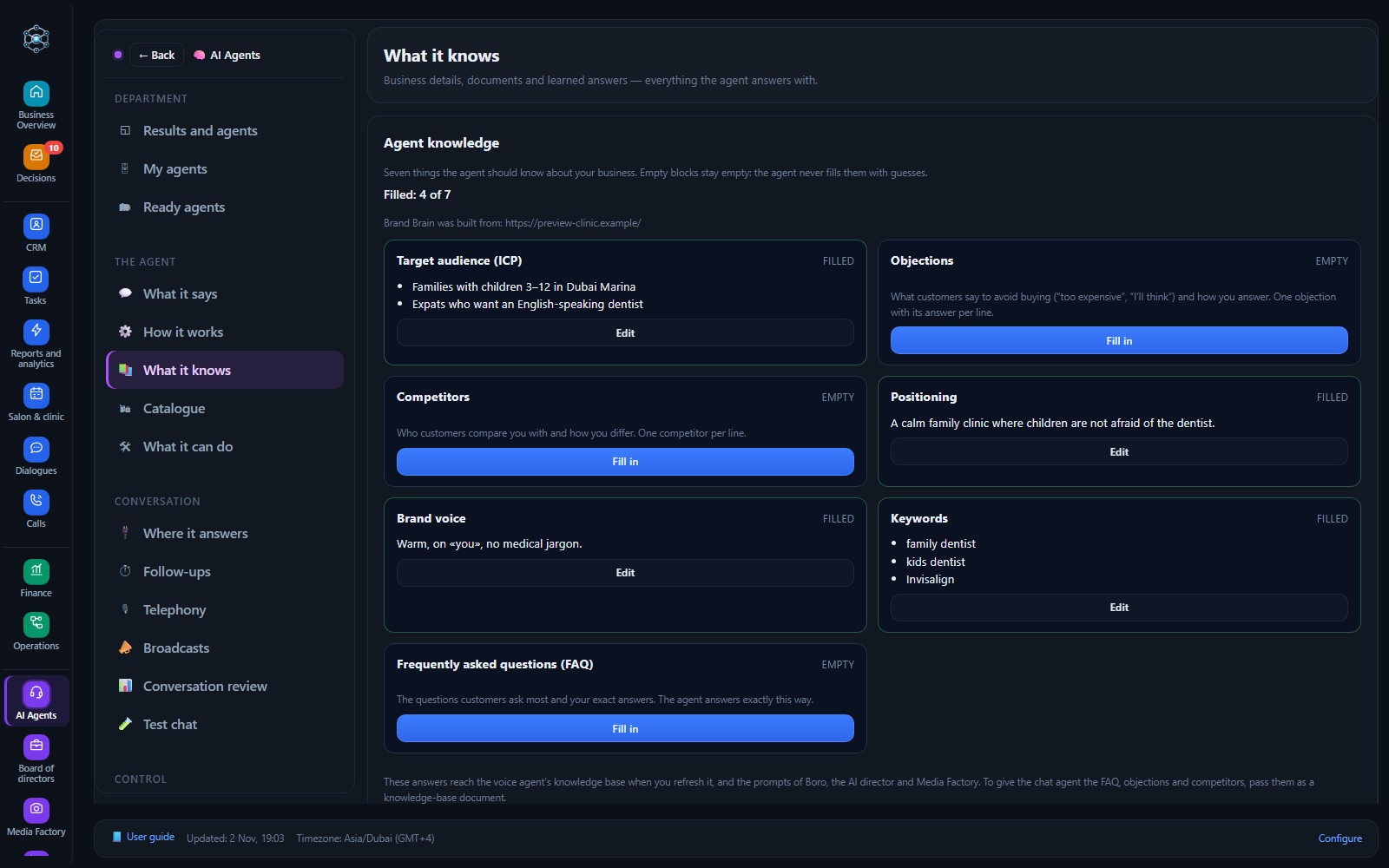
In What it knows add your price list and salon rules.
The assistant's knowledge: what it answers clients with.
From the second phone write to the connected messenger, for example «I'd like a haircut tomorrow»: ask for a
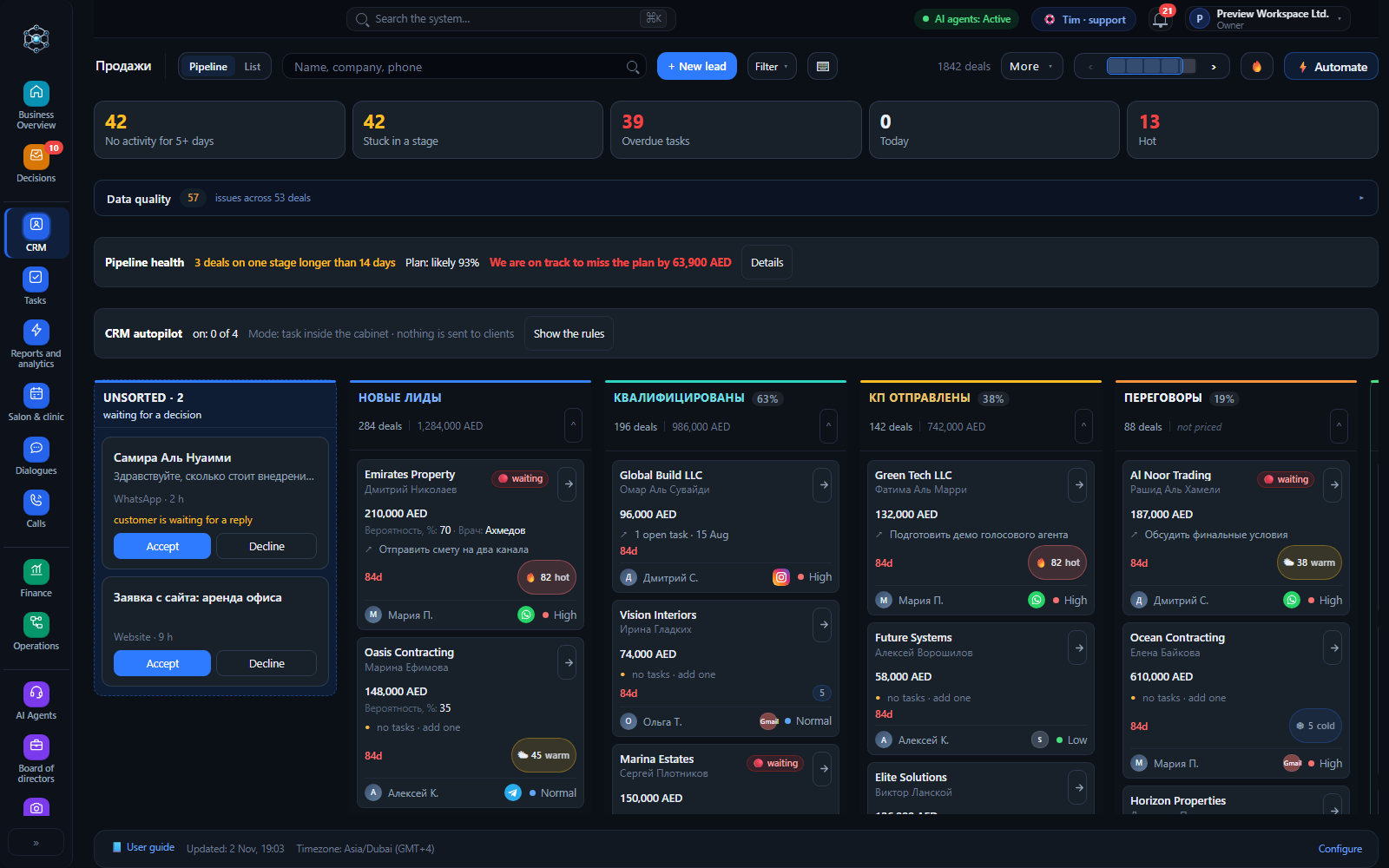
service, pick a time, confirm. Check that the booking appeared in the Altegio calendar and in the CRM.
Deals in the CRM by stage.
Settings in the cabinet
Branches. One workspace serves every branch — do not register a second time; write to support and we
connect the other branches here. The assistant asks the client for the branch first and names it next to every
time. A branch under renovation or without online booking is switched off in Settings → Branches.
Handover to a person. Choose when the assistant hands over a conversation and how long it stays quiet after a staff reply.
Languages. The assistant answers in the language of the client's message. Greeting and tone are set in the assistant's settings.
Knowledge. Add answers about prices, preparation, aftercare and rules. Your team's replies can be
offered to the assistant for approval, so it learns from real conversations.
Waitlist. When a booking is cancelled or moved, clients who were waiting for that time get a message with the free slot.
After the visit.AI Agents → What it can do → Ask for a review after the visit — with your review link.
Trial, price and payment
30 days free, no card needed.
The «Salon» plan — $29 a month: 150 AI conversations, the assistant in one messenger, CRM, client
follow-ups and the Altegio link.
Launch discount −50% on the first 3 paid months of «Salon»: $14.50 a month, then $29. It applies at payment by itself, no code needed.
For chains and larger volumes — Starter $99, Growth $299 and Pro $699: more conversations, channels and analytics.
Voice calls are available on any plan; during the trial, 30 minutes are free.
Launch terms for Altegio clients and all prices are on the Tariffs tab of the app card. Paying yearly saves 10%.
Payment in the cabinet: Settings → Billing, by card or bank transfer.
If the trial ends without payment, the paid features of the cabinet pause. Your data and conversations stay
in the account, and everything switches back on after payment.
Disconnect
In Altegio open integrations, find Revenue Control and press Disconnect. Access and notifications
stop at once. Your data stays in your Revenue Control account, and you can connect again at any time. To close
the account and delete the data, see data deletion or write to support.
Support
Tim — 24/7 support on Telegram: in the cabinet, your profile at the top right → Help → 24/7 support · Tim.
He sees your cabinet's state and calls a specialist when needed.
Boro — the helper at the bottom right of the cabinet: tells you what is set up and where to click.
Turnkey setup with a specialist: the Order setup by a specialist button in the welcome block.